Edits workflow comparison
Instagram Edits Desktop vs Mobile: Choose the Right Workflow
Use Edits mobile when the job begins with capture or needs a quick camera-roll edit. Choose Edits on Mac when the project needs a complex timeline, precise audio, detailed color work, or 4K export. Desktop and mobile projects do not sync yet, so choose the editing device before you build the timeline.
Published and reviewed by the Roastagram team ·
The practical difference
| Task | Mobile | Mac |
|---|---|---|
| Capture | Record inside Edits or choose camera-roll clips. | Import files already on the computer. |
| Timeline | Fast touch editing for short projects. | Multi-track view, waveforms, keyframes, and keyboard shortcuts. |
| Look | Mobile effects and familiar quick controls. | Color wheels, curves, log conversion, LUTs, and imported fonts. |
| Handoff | Projects stay on the mobile side. | Projects stay on the Mac side. |
| Publish | Open Instagram or save an Instagram draft. | Share directly or export and Reveal in Finder. |
Sources: Edits for desktop, checked November 6, 2026, and Instagram's download and sharing instructions.
Choose mobile for capture and a short route to publish
Mobile makes sense when the footage is already on your phone, the sequence is short, and touch controls are enough. Edits can record video, pull from the camera roll, add text or captions, use Instagram audio, and send the result into Instagram.
A mobile project can also save an Instagram draft. The caption, tags, and audience choices stay with that draft while you return to Edits for video changes. You must export to Instagram again when the video changes. That keeps the latest render attached to the draft choices.
Mobile also wins when you need to check the edit in the same physical context as the viewer. Read every caption at arm's length and make sure buttons will not cover essential text.
Choose Mac for layered audio and a larger timeline
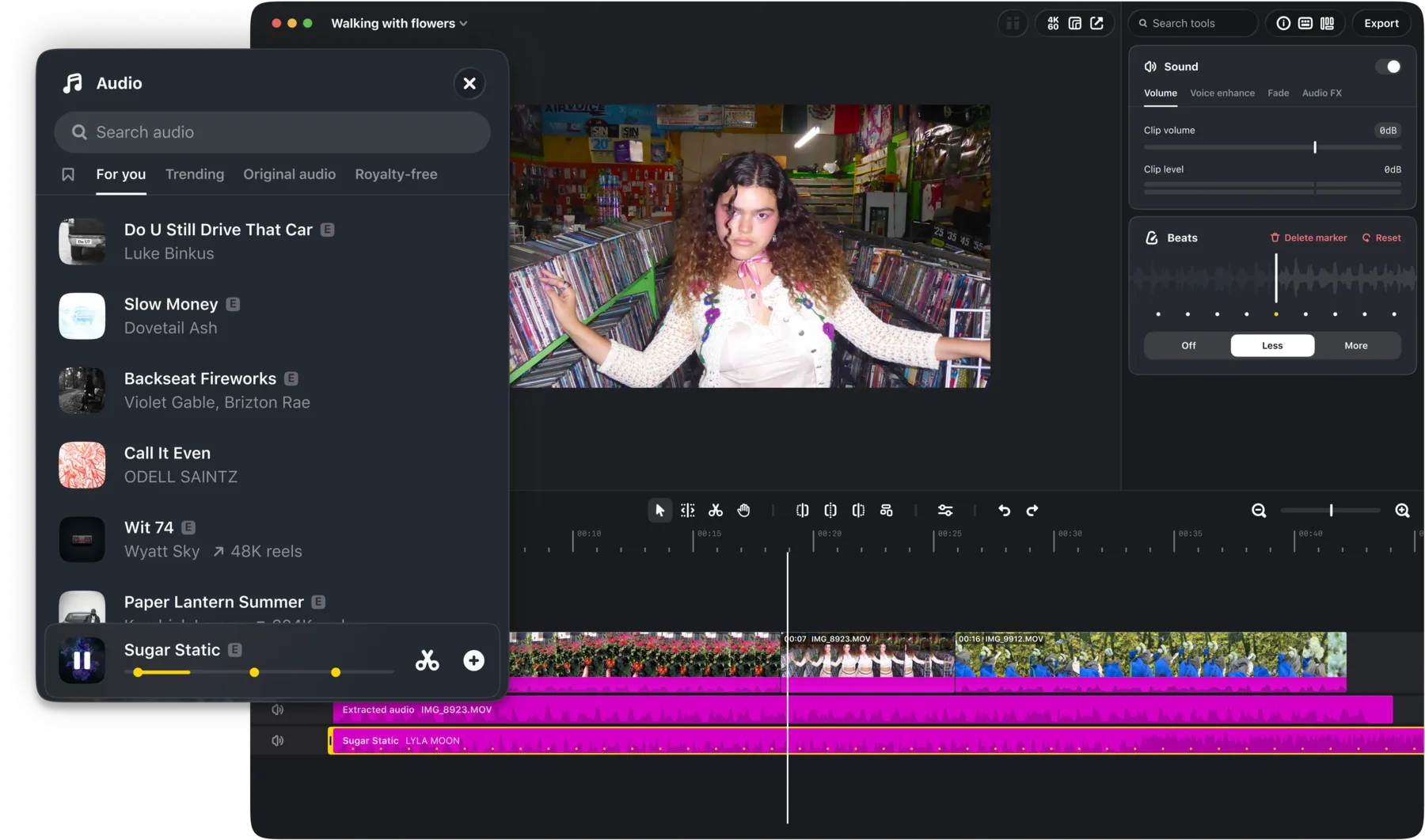
A bigger screen helps when several clips overlap with music, narration, effects, and captions. The Mac app combines Instagram's licensed and royalty-free audio libraries with a visible waveform and layered controls. Saved audio and text styles from mobile are available on desktop, which reduces setup without moving the project itself.
Plan the handoff around files, not project sync
Instagram says desktop and mobile projects do not sync. A reliable mixed-device workflow is simple: capture on the phone, transfer original clips to the Mac, complete the complex edit on the Mac, and publish from there. Avoid starting a detailed mobile timeline if you already know the edit needs desktop tools.
Keep original clips and the exported master until publication is verified. If a caption, crop, or audio level needs correction, reopen the Mac project and export again. Editing the downloaded video elsewhere creates another generation and makes revision tracking harder.
Compare the final publishing paths
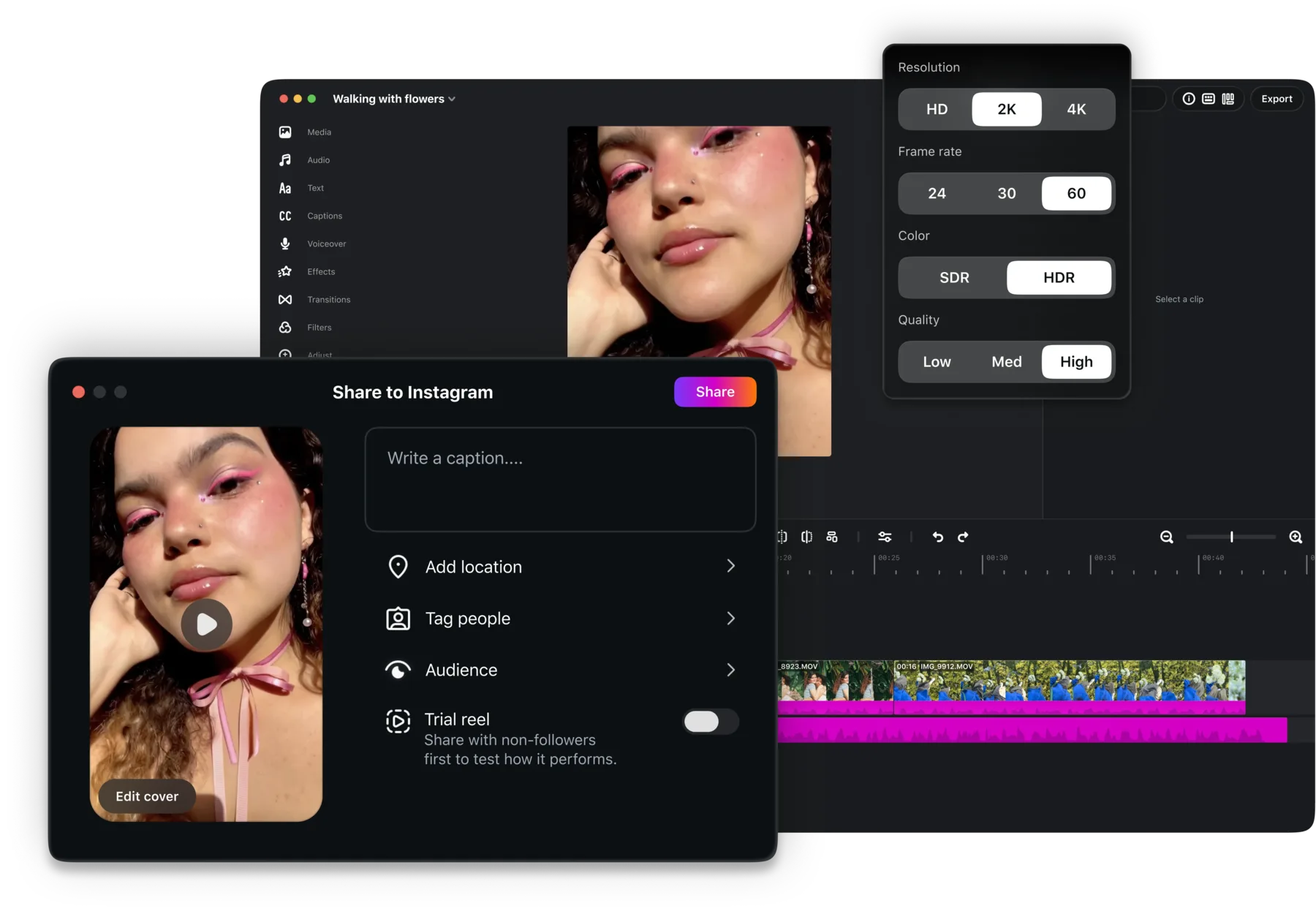
On Mac, Export saves the file to the computer. The next screen can Share to Instagram or Reveal in Finder. Direct sharing includes the cover, caption, location, people tags, audience, and Trial reel controls. Watermark-free 4K export remains available when you need a master for another destination.
On mobile, the download screen can open Instagram for Reel sharing. You can also save an Instagram draft while keeping the Edits project available for changes. Both routes still need a published-post check.
Keep account settings in the right app
Mac playback and media-import preferences live under Edits in the Mac menu bar, then Settings and General. Password, two-factor authentication, saved login, profile status, and account information remain Instagram settings. Edits uses the linked Instagram identity.
Account boundary: Instagram Help Center, checked November 6, 2026.
Edits desktop and mobile questions
Should I use Edits on Mac or on my phone?
Use mobile for capture, quick edits, and work that starts from your camera roll. Use Mac for complex timelines, detailed audio, color work, imported fonts or LUTs, and large source files.
Can I start an Edits project on mobile and finish it on Mac?
No. Instagram currently keeps Mac projects separate from Android and iPhone projects. Transfer original media and create a new project if you must change devices.
Can both versions publish to Instagram?
Yes. Mobile can open the Reel in Instagram or save an Instagram draft. Mac can publish directly with cover, caption, location, tags, audience, and Trial reel controls.
Where are Edits settings on Mac?
Open Edits in the Mac menu bar and choose Settings. General contains Mac-only preferences such as playback and media import. Account security remains managed in Instagram.
Keep improving
Related Instagram guides
Desktop editing guide
Instagram Edits Desktop
Use Instagram Edits on Mac for multi-track video, precise audio and color work, direct Reel publishing, and watermark-free 4K export while its projects remain separate from mobile.
Read guide →Edits quality guide
Best Instagram Reel Quality Settings for Edits
Use Instagram's current Edits camera and export controls to record sharp Reels, choose resolution, frame rate, SDR or HDR, and share without an avoidable extra export.
Read guide →Reels workflow guide
How to Make Instagram Reels in 2026
Plan, record, edit, cover, and publish an Instagram Reel around one clear idea using Instagram's current tools and limits.
Read guide →