Edits quality guide
Best Instagram Reel Quality Settings for Edits
For the best Reel quality Instagram currently recommends, export from Edits at 2K, HDR, and 60 fps, then share directly to Instagram. You can capture and export at up to 4K and 60 fps, but playback still changes with the viewer's device and connection.
Published and reviewed by the Roastagram team ·
The short settings checklist
- Capture
- Use the highest setting your phone can record reliably, up to 4K and 60 fps in Edits. Choose HDR only when the phone and the rest of your workflow support it.
- Instagram export
- Start with 2K, HDR, and 60 fps. This is the combination the Edits team says Instagram currently prioritizes for playback.
- Sharing
- Send the finished video directly from Edits to Instagram rather than saving and processing another copy first.
- Final check
- Watch the published Reel on another phone and connection. Delivery can differ by device and network conditions.
Source: Instagram for Creators, Best Camera & Export Settings for High-Quality Instagram Reels, April 9, 2026.
Record a clean master before choosing export settings
Resolution cannot repair soft focus, clipped highlights, heavy digital zoom, or a dark clip full of noise. Clean the lens, lock focus on the subject, and check the brightest part of the scene before recording. If the action does not need slow motion or unusually smooth movement, test whether 30 fps gives the phone more light per frame. Use 60 fps when the movement benefits from it and the scene has enough light.
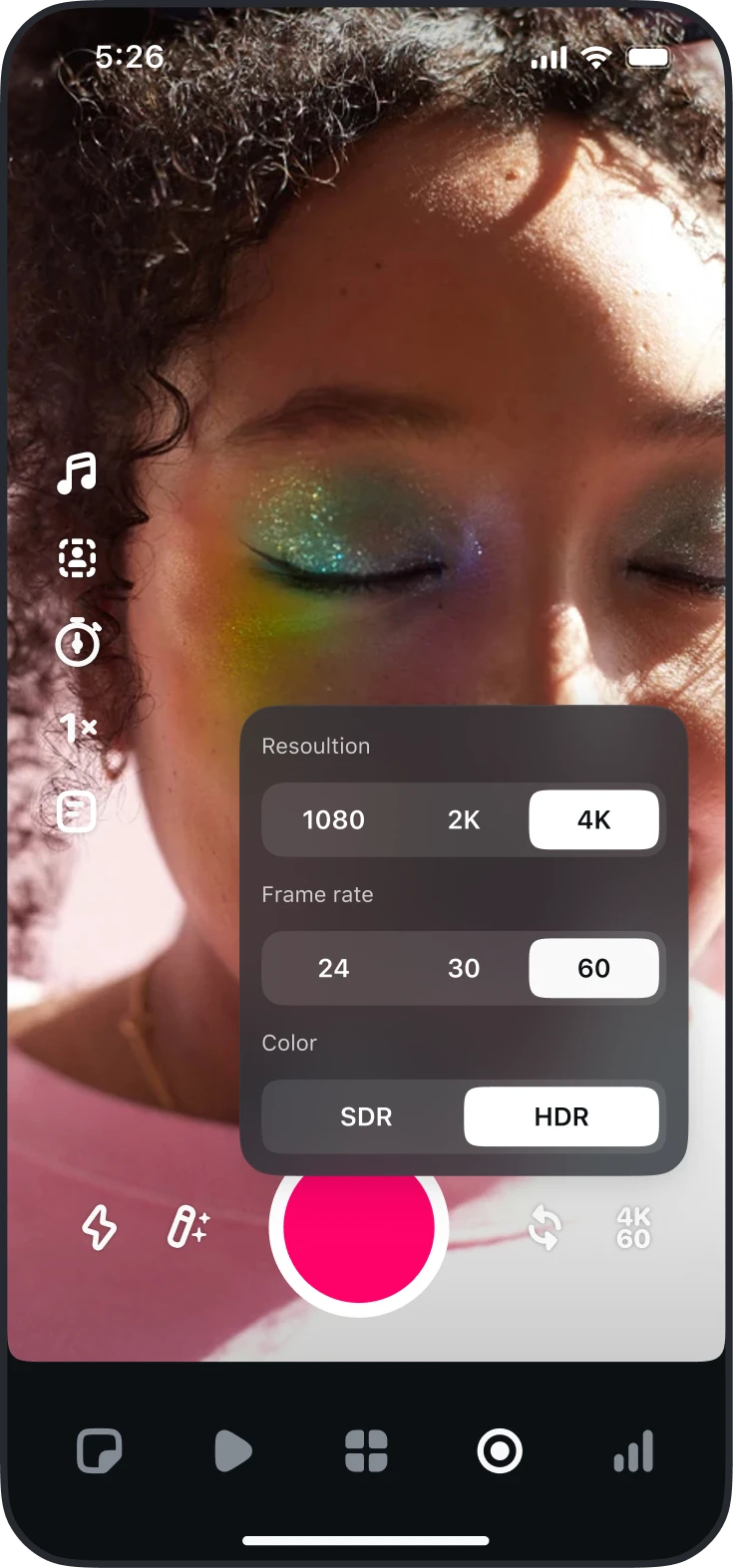
Edits can record at up to 4K and 60 frames per second. Its camera also supports HDR on compatible phones. Those are ceilings, not requirements. A stable, well-lit 1080p clip can look better than noisy 4K footage, and an HDR clip can look wrong if another step in the workflow converts its color badly.
Match the export to Instagram's current playback target
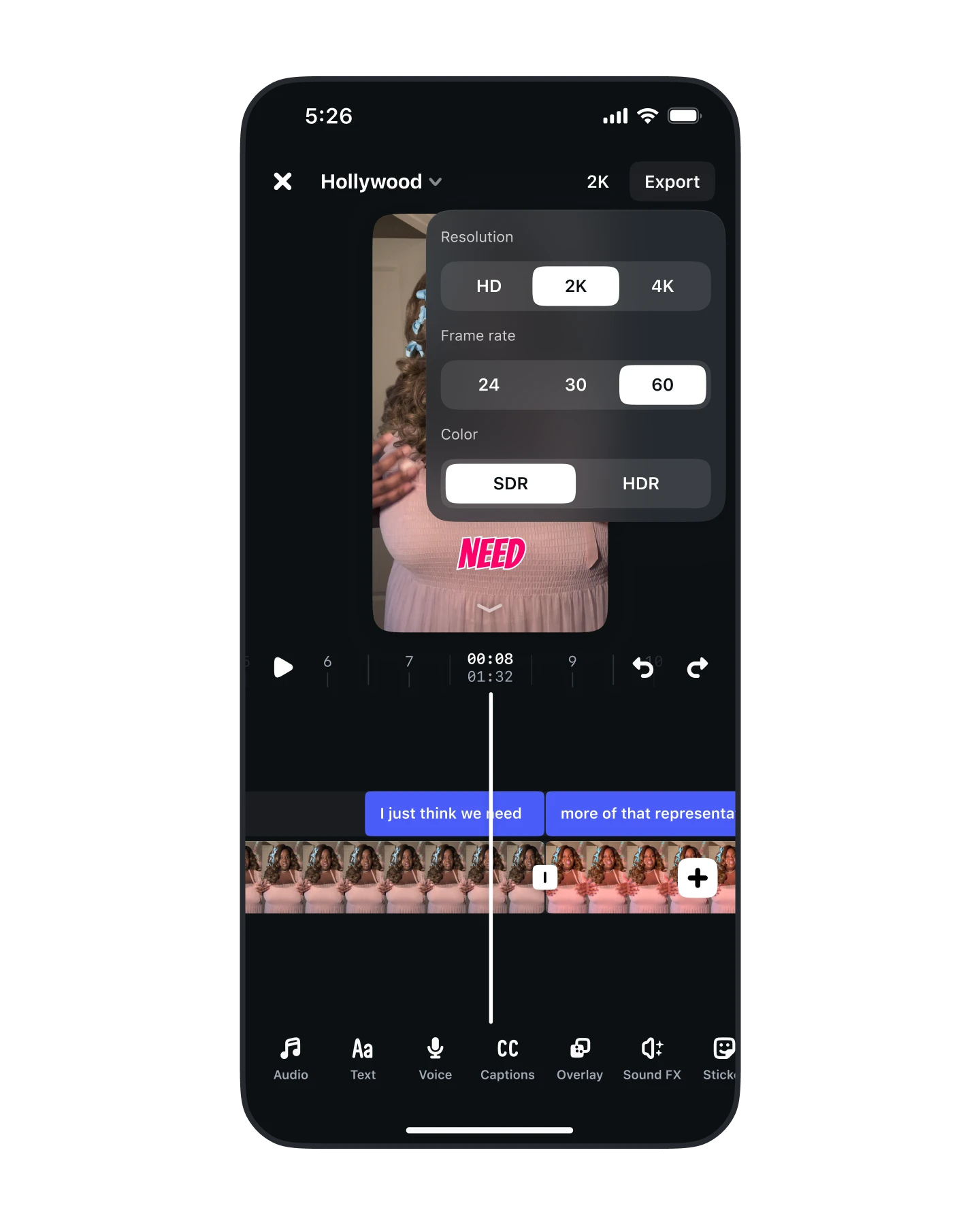
Edits preserves the full quality of footage while you work and lets you choose up to 4K, up to 60 fps, and either SDR or HDR at export. Instagram's current advice for its own platform is more specific: export at 2K, HDR, and 60 fps. Instagram says it will prioritize playback up to those settings.
Keep the wording precise. A 2K HDR 60 fps export does not force every phone to play that exact version. Instagram optimizes playback for mobile and adapts delivery to the device and connection. It also cannot restore detail that was missing in the recording.
Share directly, then inspect the published result
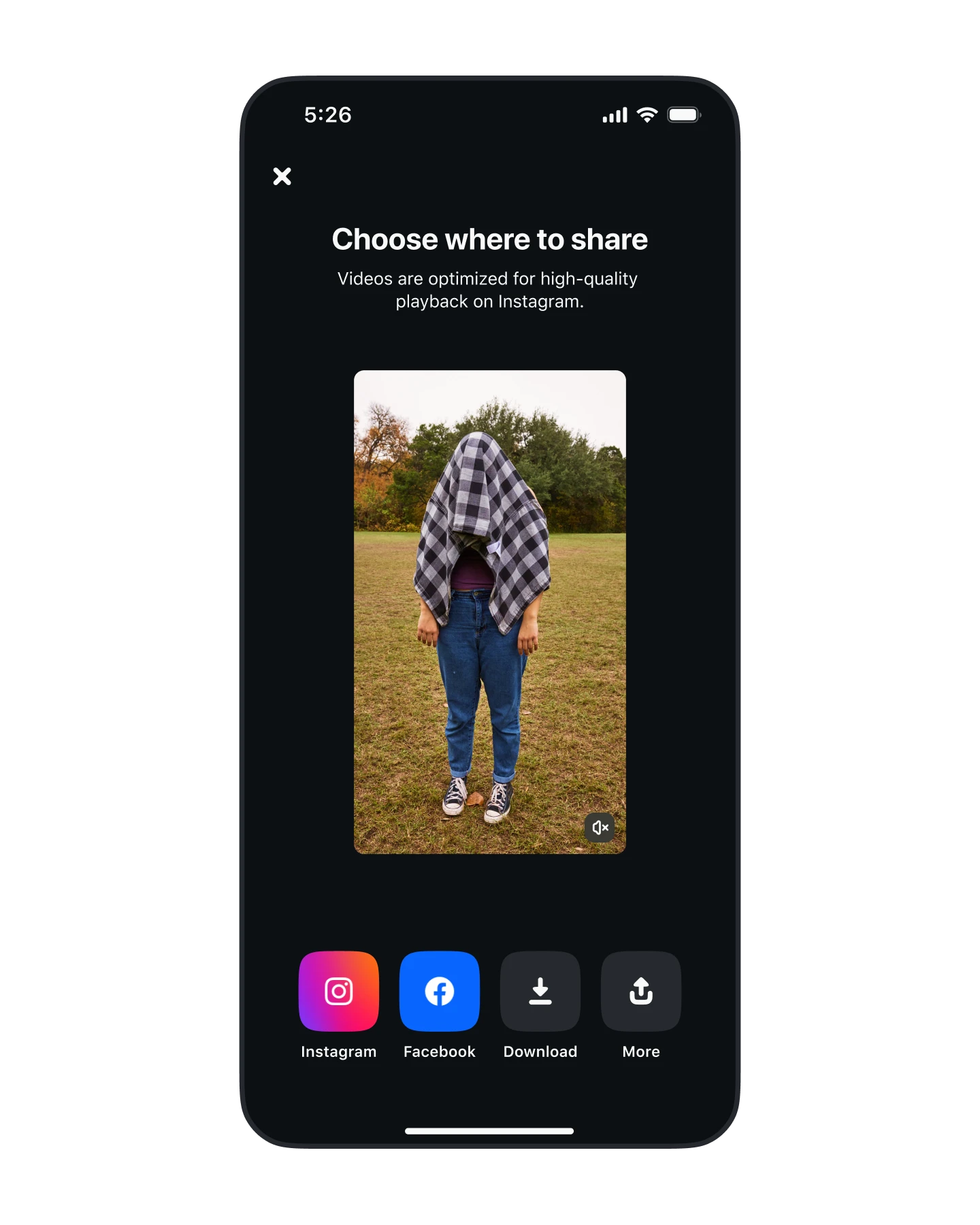
Instagram recommends exporting directly from Edits to Instagram. It says direct sharing receives priority processing so the Reel looks better from its first view. The practical benefit is simpler too: you avoid creating another intermediate file, opening it in another editor, and exporting it again.
After publishing, check the opening frame, fine text, fast movement, skin tones, gradients, and dark areas. Use a second device if possible. If something looks wrong, change one part of the workflow at a time. Start with capture exposure and focus, then compare SDR with HDR, then test 30 fps against 60 fps. Randomly raising every setting makes the source of the problem harder to find.
A useful troubleshooting order
- Watch the original clip outside Instagram at full size.
- Check focus, exposure, motion blur, noise, and any digital zoom.
- Compare the Edits timeline with the exported file before upload.
- Confirm whether you exported SDR or HDR and whether the phone displays it correctly.
- Publish one short test and view it on another device and connection.
Instagram Reel quality questions
What settings does Instagram recommend for high-quality Reels?
Instagram's Edits team recommends exporting at 2K, HDR, and 60 fps for the best quality it currently prioritizes. Your phone must support the chosen capture and color settings.
Can Edits record and export 4K video?
Edits can record and export at up to 4K and 60 frames per second. Instagram's stated Reel playback priority is up to 2K, HDR, and 60 fps, so a 4K export is not a promise that every viewer receives 4K playback.
Should I share a Reel directly from Edits?
Instagram recommends sharing directly from Edits to Instagram. That removes an extra save and upload step, and Instagram says direct shares receive priority processing from the first view.
Why can a sharp Reel still look softer after upload?
Instagram adapts playback to the viewer's device and connection. Low light, digital zoom, weak focus, repeated exports, and unsupported HDR can also create visible quality problems before Instagram processes the file.
Keep improving
Related Instagram guides
Reels workflow guide
How to Make Instagram Reels in 2026
Plan, record, edit, cover, and publish an Instagram Reel around one clear idea using Instagram's current tools and limits.
Read guide →Reel cover checklist
Instagram Reel Covers: Crop and Design Checklist
Choose a Reel cover that explains the video in the Reels tab and remains readable when Instagram crops it into your profile grid.
Read guide →Video editor comparison
Reels Editing Apps
Compare Instagram Reels editing apps for mobile timelines, captions, templates, effects, brand graphics, exports, collaboration, and native workflows.
Read guide →